Free · Immersive · Focus Now
A free large-screen clock tool designed for teaching, meeting presentations, and competition timing. No feature limitations, only displays brief promotional information at startup (no longer shown after closing).
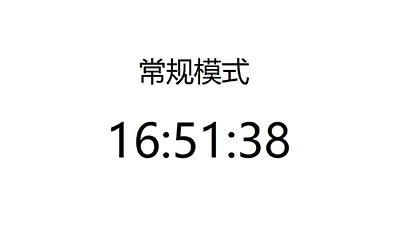
Real-time display of current time, supports multiple formats:
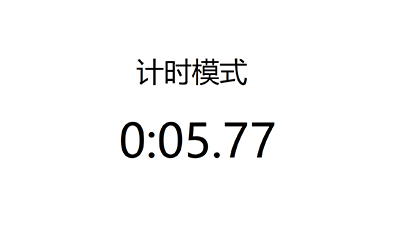
Stopwatch function, precise time tracking:
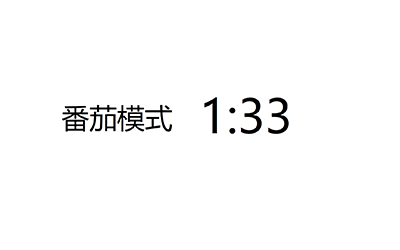
Pomodoro timer, improve work efficiency:
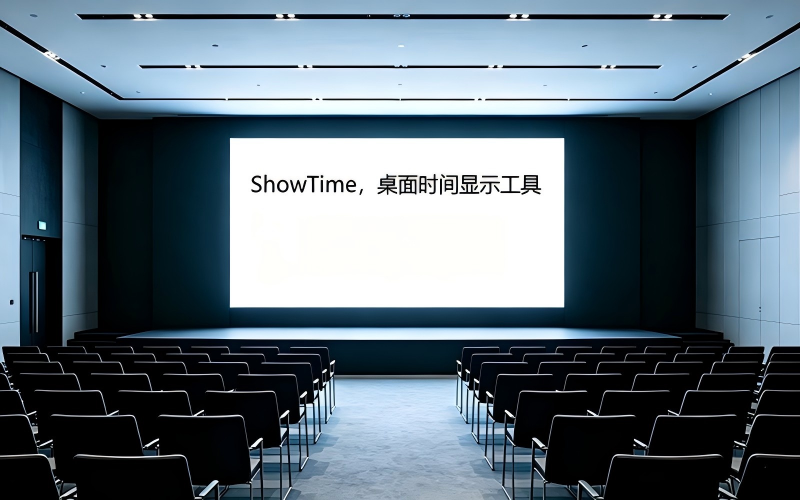
One-click fullscreen clock mode, auto-hide system title bar, create a pure visual experience. Whether for large presentations or classroom teaching, this large-screen clock provides clear fullscreen time display, ensuring even back-row viewers can see clearly. ShowTime redefines the visual boundaries of desktop clocks.
Supports custom font size, color, background color or image, movable time display position, add/hide custom text labels, adjustable window transparency, meeting personalization needs.
Clean and simple interface, no ads or popups, focused on time display, bringing a pure user experience.
All settings can be saved via config file, auto-load after restart, no need to reconfigure.
Choose the version that suits you and start your high-quality fullscreen time display journey now.
Built-in .NET 8+ environment, ready to use. No configuration needed, enjoy smooth large-screen clock experience.
System Requirements: Windows 7 or later (x64)
Smaller size, suitable for users with runtime installed, quickly deploy your fullscreen clock tool.
Requires pre-installed .NET 8+ Runtime Download .NET SDK
Since ShowTime is a free tool independently developed by an individual developer without purchasing expensive commercial code signing certificates, Windows SmartScreen may pop up a red warning "Windows has protected your PC" when first running.
This does not mean the software contains viruses. ShowTime is a green installation-free tool that does not collect privacy data.
If you encounter this prompt, please follow these steps:
💡 Recommended Solution:If you feel uneasy about the security notice, you can choose to download ShowTime from the Microsoft Store. The Microsoft Store version is officially reviewed and certified by Microsoft, no security warnings, more secure and reliable.

Master these tips to elevate your fullscreen clock experience
Fullscreen time display is ShowTime's core feature. For the best experience: 1) Close other distracting windows before entering fullscreen clock mode; 2) Use hotkeys to quickly switch between fullscreen/window modes; 3) Hide the system title bar when displaying the large-screen clock for an immersive experience; 4) Adjust font size based on usage scenario - we recommend 60pt+ for meeting rooms and 36pt for personal desktop clocks. These tips will maximize your fullscreen time display effect.
Related Reading: View Full Tutorial | ⚙️ Format Customization: Flexible Time Display | ⌨️ Shortcuts: Efficiency Essentials
ShowTime desktop clock offers rich personalization options. You can customize the fullscreen clock's font size, color, and background to create your exclusive large-screen clock style. We recommend using dark background + light font for presentations to make the fullscreen time display more prominent. For daily office work, choose transparent background to perfectly blend the desktop clock with your wallpaper. Save settings via configuration file, and your personalized scheme will auto-load after restart.
Related Reading: View Full Tutorial | 🪟 Desktop Integration: Windows Beautification Tips
Beyond powerful features, ShowTime desktop clock can beautify your Windows desktop. By setting a transparent background, the fullscreen clock can perfectly blend with your wallpaper. The large-screen clock supports custom font colors - we recommend choosing colors that coordinate with your wallpaper tone. You can also add custom text labels to the fullscreen time display, such as mottos or meeting themes, making the desktop clock both practical and beautiful.
Related Reading: View Full Tutorial | 🎨 Personalization: Customize Your Exclusive Clock
ShowTime fullscreen clock supports multiple time format customizations. You can choose full date and time (YYYY-MM-DD HH:MM:SS), date only, or time only (HH:MM:SS). For meeting presentations, we recommend the desktop clock to display only time for simplicity; for classroom teaching, the large-screen clock can display the full date to help students develop time awareness. The fullscreen time display format can be flexibly adjusted via configuration file to meet different scenario needs.
Related Reading: View Full Tutorial | 🖥️ Fullscreen Display: Create an Immersive Clock Experience
ShowTime's Pomodoro mode is a powerful tool for boosting work efficiency. This fullscreen clock has a built-in Pomodoro timer, defaulting to 25 minutes work + 5 minutes break. You can customize durations on the desktop clock, such as adjusting to 50 minutes deep work + 10 minutes break. The large-screen clock will sound an alert when a Pomodoro cycle ends, helping you stay focused. We recommend using the Pomodoro feature in fullscreen time display mode to reduce distractions and enhance focus.
Related Reading: View Full Tutorial | ⏱️ Stopwatch: Millisecond-Level Precision Timing
ShowTime desktop clock's stopwatch function supports millisecond-level precision display, perfect for competition timing scenarios. After enabling timer mode, the large-screen clock displays timing results in real-time, with options to show 0, 1, or 2 decimal places of milliseconds. In sports competitions, speech time limits, and similar scenarios, the fullscreen clock's stopwatch function allows all participants to clearly see time passing. We recommend using it in fullscreen time display mode with large font settings to ensure visibility for the entire venue.
Related Reading: View Full Tutorial | ⏰ Meeting Timer: Precise Time Control
ShowTime fullscreen clock is an ideal tool for meeting timing. In large meetings, the large-screen clock can be projected to the main screen, allowing all participants to see meeting progress in real-time. The desktop clock's timer mode supports preset meeting durations, and the fullscreen time display will remind the host when time is about to end. In group discussion scenarios, you can set independent timers for each group to ensure fair time allocation. These scenarios all demonstrate the value of desktop clocks in meeting management.
Related Reading: View Full Tutorial | 🎤 Meeting Projection: Clear Visibility for Back Rows
In meeting presentation scenarios, the fullscreen clock is your time management weapon. After enabling ShowTime's fullscreen clock mode, the large-screen clock will clearly display the current time, allowing both presenters and audiences to grasp progress in real-time. We recommend setting the desktop clock to display only hours, minutes, and seconds format, with font size 48pt or above, ensuring back-row audiences can clearly see the fullscreen time display. Before the presentation, you can use timer mode to preset presentation duration, helping you precisely control the pace.
Related Reading: View Full Tutorial | 🖥️ Fullscreen Display: Create an Immersive Clock Experience | ⏰ Meeting Timer: Precise Time Control
When teachers use ShowTime desktop clock, they can project the large-screen clock onto classroom projectors, providing students with clear fullscreen time display. In exam countdown scenarios, use timer mode to set exam duration, and the fullscreen clock will display remaining time in real-time, helping students arrange their answering pace reasonably. Pomodoro mode is also very suitable for classroom use, cultivating students' time management awareness through 25-minute work + 5-minute break cycles.
Related Reading: View Full Tutorial | 🍅 Pomodoro Technique: The Magic of 25-Minute Focus
Mastering keyboard shortcuts can make your desktop clock operations more efficient. ShowTime fullscreen clock supports various shortcut operations: quick switch between fullscreen/window modes, pause/resume timing, switch between normal/timer/Pomodoro modes, etc. During presentations or teaching, control the large-screen clock via shortcuts without mouse operations, maintaining professionalism. We recommend memorizing common shortcuts to make fullscreen time display your time management assistant.
Related Reading: View Full Tutorial | 🖥️ Fullscreen Display: Create an Immersive Clock Experience